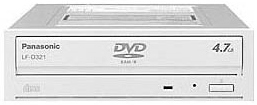
CD-ROM
![]() |
|
|
For information on CD-ROM, DVD-ROM, DVD-r, DVD+r, DVD+RW, DVD-RW drives, click the link below
- CD-ROM access - Unable to access the CD-ROM drive
- CD-ROM drive install - How to install a CD-ROM drive
- Deleting upper and lower filters - If you are having trouble with the CD-ROM drive, this may help
- Drive jumper - Information on setting the jumper (IDE drives only)
- Drive letter not showing - The drive is not showing up in My Computer
- DVD sluggish - what to do if the DVD is sluggish
- IDE power cable - Information on the IDE power cable
- No bootable device found - What to do if you get this message
- CD-ROM Troubleshooter - Use this tool if the CD-ROM is not seen
- Which CD or DVD format should I use?
- Information on drive bays the CD-ROM drive sits in
People gets confused between regular CD-ROM, CDRW, DVD and DVDRW when it comes to what drive to use for particular CD. All three of them can read Data and music CDs. If you have a music CD, a program CD (Like office, Quicken and so forth), or data CDs then the CD-ROM, CDRW, DVD and DVD-RWs will read the CD. The only difference between a the three is the added feature it has. Here is the differences in the drives
| Disk | Storage size | Writable | Erasable | Play Movies |
| CD | 600 Megabytes * | No | No | No |
| CD-R | 600 Megabytes * | Yes | No | No |
| CD-RW | 600 Megabytes * | Yes | Yes | No |
| DVD | 4.5 Gigabytes * | NO | No | Yes |
| DVD-R | 4.5 Gigabytes * | Yes | No | Yes |
| DVD-RW | 4.5 Gigabytes * | Yes | Yes | Yes |
| DVD+R | 4.5 Gigabytes * | Yes | No | Yes |
| DVD+RW | 4.5 Gigabytes * | Yes | Yes | Yes |
| DVD+/-RW | 4.5 Gigabytes * | Yes | Yes | Yes |
| DVD+/-RW DL | 8 Gigabytes * | Yes | Yes | Yes |
| Blu-Ray | 25 to 50 Gigabytes * | Yes | Yes | Yes |
* The size is not exact. For information on bytes, kilobytes, Gigabytes click here.
For information on a drive type, click on the link for more information
-
Can read program, data and music CDs.
-
Cannot write to a CD.
-
Can't play DVD disks.
-
Depending on the age of the CD-ROM drive, it might be able to read CD-R and CD-RW disks.
-
Cannot write to any DVD disks
-
Cannot write labels directly to CD using lightscribe.
-
No software needed to use drive. To listen to music, you will need a music application, such as Media Player, Musicmatch or some other player.
Note: if you want to edit a document or file that is on the disk, you will have to copy it to the hard drive. Then if you want it back on a CD, you will have to use a CD-R, CD-RW, DVD-R, DVD+R, DVD+/-R, or a DVD+/-RW disk that is still open and has room still available on it.
-
Can read program, data and music CDs.
-
Can write to CDR disks
-
Cannot erase or write to CD-RW disks
-
Cannot erase data on a CD-R disk. Once it is written, it cannot be erased. Once you reach the space limit of the disk, you cannot add more to it.
-
Cannot watch DVD movies.
-
Can write up to 650 megs of data (estimate) (One CD would hold over 600 floppy disks worth of data)
-
Cannot write to any DVD disks
-
Cannot write labels directly to CD using lightscribe.
-
No software needed to use drive. To listen to music, you will need a music application, such as Media Player, Musicmatch or some other player. To burn CD-R disks, you will need to install software such as Nero, Sonic or some other disk burning utility software. Windows XP has a limited burning capability built into the software.
Note: if you want to edit a document or file that is on the disk, you will have to copy it to the hard drive. Then if you want it back on a CD, you will have to use a CD-R, CD-RW, DVD-R, DVD+R, DVD+/-R, or a DVD+/-RW disk that is still open and has room still available on it. When you do add the files, the files will be an addition to the files you already have on the disk. You can't overwrite existing files. If you close the disk you will not be able to burn to it any longer. You will not be able to erase or alter the files that is on the disk.
-
Can read program, data and music CDs.
-
Can write to CDR disks
-
Can erase and re-write to CDRW disks.
-
Cannot watch DVD movies.
-
Can write up to 650 megs (estimate) (One CD would hold over 600 floppy disks worth of data)
-
Cannot write to any DVD disks
-
Cannot write labels directly to CD using lightscribe.
-
No software needed to use drive. To listen to music, you will need a music application, such as Media Player, Musicmatch or some other player. To burn CD-R disks, you will need to install software such as Nero, Sonic or some other disk burning utility software. Windows XP has a limited burning capability built into the software.
Note: if you want to edit a document or file that is on the disk, you will have to copy it to the hard drive. Then if you want it back on a CD, you will have to use a CD-RW disk that is still open and has room still available on it. When you do add the files, the files will be an addition to the files you already have on the disk. You can't overwrite existing files. If you close the disk you will not be able to burn to it any longer. If you want the new files to overwrite the existing files, you will have to format the disk and then burn the new data to the disk. The formatting will erase existing files on the disk.
-
Can read program, data and music CDs
-
Can play DVD movies
-
Cannot write to CDR or CDRW disks
-
Cannot write to DVD-R, DVD-RW, DVD+R, DVD+RW, DVD+/-RW, Dual layer DVD+/-RW disks. Also cannot write labels directly to CD using lightscribe.
-
No software needed to use drive. To listen to music, you will need a music application, such as Media Player, Musicmatch or some other player. To watch DVD movies, you will need to install a DVD movie application such as WinDVD or other brand DVD viewer application.
Note: if you want to edit a document or file that is on the disk, you will have to copy it to the hard drive. Then if you want it back on a CD, you will have to use a CD-R, CD-RW, DVD-R, DVD+R, DVD+/-R, or a DVD+/-RW disk that is still open and has room still available on it.
-
Can read program, data and music CDs
-
Can play DVD movies
-
Can write to CD-R, CD-RW, and DVD-R disks.
-
Cannot erase data on a DVD-R disk. Once it is written, it cannot be erased. Once you reach the space limit of the disk, you cannot add more to it.
-
Can write to 4.5 gigs of data ( equal to about 8 CDR disks) (One Disk would hold over 4800 floppy disks worth of data)
-
Regular DVD-R drives can't read or write to double layer disks
-
Cannot write to DVD+R, or DVD+RW disks. Also cannot write labels directly to CD using lightscribe.
-
Does not hold as much data as a DVD+R drive
-
No software needed to use drive. To listen to music, you will need a music application, such as Media Player, Musicmatch or some other player. To watch DVD movies, you will need to install a DVD movie application such as WinDVD or other brand DVD viewer application. To burn CD-R disks, you will need to install software such as Nero, Sonic or some other disk burning utility software. Windows XP has a limited burning capability built into the software.
Note: if you want to edit a document or file that is on the disk, you will have to copy it to the hard drive. Then if you want it back on a CD, you will have to use a CD-R disk that is still open and has room still available on it. When you do add the files, the files will be an addition to the files you already have on the disk. You can't overwrite existing files. If you close the disk you will not be able to burn to it any longer. You will not be able to erase or alter the files that is on the disk.
-
Can read program, data and music CDs
-
Can play DVD movies
-
Can write to CD-R, CD-RW, DVD-R and DVD-RW disks.
-
Cannot erase or rewrite to CD-R, and DVD-R disks. Once the disk is full, cannot write no more to the disk.
-
Can erase and re-write to CD-RW, and DVD-RW disks.
-
Can write to 4.5 gigs of data ( equal to about 8 CDR disks) (One Disk would hold over 4800 floppy disks worth of data)
-
Regular DVD-RW drives can't read or write to double layer disks
-
Cannot write to DVD+R, or DVD+RW disks. Also cannot write labels directly to CD using lightscribe.
-
Does not hold as much data as a DVD+RW drive
-
No software needed to use drive. To listen to music, you will need a music application, such as Media Player, Musicmatch or some other player. To watch DVD movies, you will need to install a DVD movie application such as WinDVD or other brand DVD viewer application. To burn CD-R disks, you will need to install software such as Nero, Sonic or some other disk burning utility software. Windows XP has a limited burning capability built into the software.
-
Can read program, data and music CDs
-
Can play DVD movies
-
Can write to CD-R, CD-RW, and DVD+R disks.
-
Cannot erase data on a DVD+R disk. Once it is written, it cannot be erased. Once you reach the space limit of the disk, you cannot add more to it.
-
Can write to 4.5 gigs of data ( equal to about 8 CDR disks) (One Disk would hold over 4800 floppy disks worth of data)
-
Regular DVD+R drives can't read or write to double layer disks
-
Cannot write to DVD+RW, DVD-R, or DVD-RW disks. Also cannot write labels directly to CD using lightscribe.
-
Holds more data than a DVD-R drive
-
No software needed to use drive. To listen to music, you will need a music application, such as Media Player, Musicmatch or some other player. To watch DVD movies, you will need to install a DVD movie application such as WinDVD or other brand DVD viewer application. To burn CD-R disks, you will need to install software such as Nero, Sonic or some other disk burning utility software. Windows XP has a limited burning capability built into the software.
Note: if you want to edit a document or file that is on the disk, you will have to copy it to the hard drive. Then if you want it back on a CD, you will have to use a CD-R disk that is still open and has room still available on it. When you do add the files, the files will be an addition to the files you already have on the disk. You can't overwrite existing files. If you close the disk you will not be able to burn to it any longer. You will not be able to erase or alter the files that is on the disk.
-
Can read program, data and music CDs
-
Can play DVD movies
-
Can write to CD-R, CD-RW, DVD+R and DVD+RW disks.
-
Cannot erase or rewrite to CD-R, and DVD+R disks. Once the disk is full, cannot write no more to the disk.
-
Can erase and re-write to CD-RW, and DVD+RW disks.
-
Can write to 4.5 gigs of data ( equal to about 8 CDR disks) (One Disk would hold over 4800 floppy disks worth of data)
-
Regular DVD+RW drives can't read or write to double layer disks
-
Cannot write to DVD-R, or DVD-RW disks. Also cannot write labels directly to CD using lightscribe.
-
Holds more data than a DVD-RW drive
-
No software needed to use drive. To listen to music, you will need a music application, such as Media Player, Musicmatch or some other player. To watch DVD movies, you will need to install a DVD movie application such as WinDVD or other brand DVD viewer application. To burn CD-R disks, you will need to install software such as Nero, Sonic or some other disk burning utility software. Windows XP has a limited burning capability built into the software.
Note: if you want to edit a document or file that is on the disk, you will have to copy it to the hard drive. Then if you want it back on a CD, you will have to use a DVD+RW disk that is still open and has room still available on it. When you do add the files, the files will be an addition to the files you already have on the disk. You can't overwrite existing files. If you close the disk you will not be able to burn to it any longer. If you want the new files to overwrite the existing files, you will have to format the disk and then burn the new data to the disk. The formatting will erase existing files on the disk.
-
Can read program, data and music CDs
-
Can play DVD movies
-
Can write to CD-R, CD-RW, DVD+R, DVD+RW, DVD-R, and DVD-RW disks.
-
Cannot erase or rewrite to CD-R, DVD-R, and DVD+R disks. Once the disk is full, cannot write no more to the disk.
-
Can erase and re-write to CD-RW, DVD+RW, and DVD-RW disks.
-
Can write to 4.5 gigs of data ( equal to about 8 CDR disks) (One Disk would hold over 4800 floppy disks worth of data)
-
Regular DVD+RW drives can't read or write to double layer disks. Also cannot write labels directly to CD using lightscribe.
-
No software needed to use drive. To listen to music, you will need a music application, such as Media Player, Musicmatch or some other player. To watch DVD movies, you will need to install a DVD movie application such as WinDVD or other brand DVD viewer application. To burn CD-R disks, you will need to install software such as Nero, Sonic or some other disk burning utility software. Windows XP has a limited burning capability built into the software.
Note: if you want to edit a document or file that is on the disk, you will have to copy it to the hard drive. Then if you want it back on a CD, you will have to use a DVD+/-RW disk that is still open and has room still available on it. When you do add the files, the files will be an addition to the files you already have on the disk. You can't overwrite existing files. If you close the disk you will not be able to burn to it any longer. If you want the new files to overwrite the existing files, you will have to format the disk and then burn the new data to the disk. The formatting will erase existing files on the disk.
-
Can read program, data and music CDs
-
Can play DVD movies
-
Can write to CD-R, CD-RW, DVD+R DVD+RW, and Dual layer disks.
-
Cannot erase or rewrite to CD-R, DVD-R, and DVD+R disks. Once the disk is full, cannot write no more to the disk.
-
Can erase and re-write to CD-RW, DVD+RW, and DVD-RW disks.
-
Can write to 8 gigs of Data (about 16 CDR disks) (One Disk would hold over 9600 floppy disks worth of data)
-
Cannot write directly to disk using Lightscribe technology.
-
No software needed to use drive. To listen to music, you will need a music application, such as Media Player, Musicmatch or some other player. To watch DVD movies, you will need to install a DVD movie application such as WinDVD or other brand DVD viewer application. To burn CD-R disks, you will need to install software such as Nero, Sonic or some other disk burning utility software. Windows XP has a limited burning capability built into the software.
Note: if you want to edit a document or file that is on the disk, you will have to copy it to the hard drive. Then if you want it back on a CD, you will have to use a DVD+/-RW disk that is still open and has room still available on it. When you do add the files, the files will be an addition to the files you already have on the disk. You can't overwrite existing files. If you close the disk you will not be able to burn to it any longer. If you want the new files to overwrite the existing files, you will have to format the disk and then burn the new data to the disk. The formatting will erase existing files on the disk.
Dual Layer DVD+/-RW with Lightscribe technology
-
Can read program, data and music CDs
-
Can play DVD movies
-
Can write to CD-R, CD-RW, DVD+R DVD+RW, and Dual layer disks.
-
Cannot erase or rewrite to CD-R, DVD-R, and DVD+R disks. Once the disk is full, cannot write no more to the disk.
-
Can erase and re-write to CD-RW, DVD+RW, and DVD-RW disks.
-
Can write to 8 gigs of Data (about 16 CDR disks) (One Disk would hold over 9600 floppy disks worth of data)
-
Can write directly to disk using Lightscribe technology.
-
No software needed to use drive. To listen to music, you will need a music application, such as Media Player, Musicmatch or some other player. To watch DVD movies, you will need to install a DVD movie application such as WinDVD or other brand DVD viewer application. To burn CD-R disks, you will need to install software such as Nero, Sonic or some other disk burning utility software. Windows XP has a limited burning capability built into the software. To use the Lightscribe technology, you will need to use the Lightscribe software and disks made for Lightscribe technology.
Note: if you want to edit a document or file that is on the disk, you will have to copy it to the hard drive. Then if you want it back on a CD, you will have to use a DVD+/-RW disk that is still open and has room still available on it. When you do add the files, the files will be an addition to the files you already have on the disk. You can't overwrite existing files. If you close the disk you will not be able to burn to it any longer. If you want the new files to overwrite the existing files, you will have to format the disk and then burn the new data to the disk. The formatting will erase existing files on the disk.
Note A: a program, data or music CD that you make yourself in the CDRW or DVDRW may not work in all drives. This doesn't indicate a hardware issue. This is a compatibility issue between the drive that wrote the CD and the drive trying to read the CD.
Note B: The DVD-RW drives will not copy store bought DVD movies. This means you can't take Raiders of the Lost Ark and make a copy of it. It will allow you to make a home movie and then copy the home movie to a DVD-R or DVD-RW disk.
Lightscribe technology - is new technology developed by Hewlett-Packard (HP) that allows you to use special software to have the drive burn a image that you either design or pick right into the disk. No labels are involved and therefore reduces the risk of the label coming unglued and damaging the drive. You will have to have a drive that supports this technology, software to create the image and special CDs.
Blue Ray
Blu-ray
(not Blue-ray) also known as Blu-ray Disc (BD), is the name of a
next-generation optical disc format. The format was developed to
enable recording, rewriting and playback of high-definition video
(HD), as well as storing large amounts of data. The format offers
more than five times the storage capacity of traditional DVDs and
can hold up to 25GB on a single-layer disc and 50GB on a dual-layer
disc. This extra capacity combined with the use of advanced video
and audio codecs will offer consumers an unprecedented HD
experience.
While current optical disc technologies such as DVD, DVD±R, DVD±RW,
and DVD-RAM rely on a red laser to read and write data, the new
format uses a blue-violet laser instead, hence the name Blu-ray.
Despite the different type of lasers used, Blu-ray products can
easily be made backwards compatible with CDs and DVDs through the
use of a BD/DVD/CD compatible optical pickup unit. The benefit of
using a blue-violet laser (405nm) is that it has a shorter
wavelength than a red laser (650nm), which makes it possible to
focus the laser spot with even greater precision. This allows data
to be packed more tightly and stored in less space, so it's possible
to fit more data on the disc even though it's the same size as a
CD/DVD. This together with the change of numerical aperture to 0.85
is what enables Blu-ray Discs to hold 25GB/50GB.
Recent development by
Pioneer has pushed the storage capacity to 500GB on a single
disc by using 20 layers. Information on Blu-ray is from
http://www.blu-ray.com/info/
-
Can read program, data and music CDs
-
Can play DVD movies
-
Can write to CD-R, CD-RW, DVD+R, DVD+RW, DVD-R, and DVD-RW disks.
-
Cannot erase or rewrite to CD-R, DVD-R, and DVD+R disks. Once the disk is full, cannot write no more to the disk.
-
Can erase and re-write to CD-RW, DVD+RW, and DVD-RW disks.
-
Can write to 25GB/50GB (this may increase as technology changes) ( equal to about 8 CDR disks) (One Disk would hold over 4800 floppy disks worth of data)
-
Regular DVD+RW drives can't read or write to double layer disks. Also cannot write labels directly to CD using lightscribe.
-
No software needed to use drive. To listen to music, you will need a music application, such as Media Player, Musicmatch or some other player. To watch DVD movies, you will need to install a DVD movie application such as WinDVD or other brand DVD viewer application. To burn CD-R disks, you will need to install software such as Nero, Sonic or some other disk burning utility software. Windows XP has a limited burning capability built into the software.
Internal drives require the computer case to be opened. If you are replacing a drive, you will have to remove the old one and insert the new one. If you are installing one and not replacing a drive, you will have to add it to an empty spot on the computer. Before installing the drive, read safety instructions Click here for instructions on installing a CD-ROM
External drives are connected via USB, 1394, or parallel. This does not require the system to be opened for the install. USB drives can be connected while the system is turned on. I believe 1394 drives can be connected while system is on (but I am not sure). Connecting a drive to the Parallel port will require the system to be off while you connect it (or you can fry the motherboard).
As far as the speed of the drive and the speed capability of the disks, A drive can write to any speed up to the designated speed of that drive. if the drive is a 16X drive, it can write to a 2x, 4x, 12x all the way to a 16x. If the disk is a 52x speed capable disk and the drive can only write at 48x, you can still use the CD. It will burn at 48x and not 52x.
Software is not needed for the general use of the drive, such as running programs or accessing data. You will need software to listen to music, watch movies, or burn CDs. Below is only a short list of available programs. Click on the link for more information on that software.
-
MusicMatch - will allow you to listen to music, convert music to mp3, and burn music CDs.
-
Media Player - will allow you to listen to music, convert music to mp3, and burn music CDs.
-
Sonic MyDVD - Will allow you to burn music, Data, images, and other types of projects.
-
Nero - Will allow you to burn music, Data, images, and other types of projects.
-
WinDVD - Allows you to watch DVD movies.
Here is the requirements of the drives
-
Internal drives
- Open bay
- Available IDE connector on IDE cable
- Available IDE port on motherboard
- Power connector
- Memory requirements are dependent on what you use the drive for. The drive itself uses very minimal memory. If you are burning or running some application with it, you will need more memory. The system will run with less memory, but will run better with more.
-
External drives
- Power source (such as a power cord) (some may use the power from the system, but those are not recommended. Some systems don’t provide enough power. The drives that have their own power are better)
- USB, 1394, Parallel connection and cables
- Memory requirements are dependent on what you use the drive for. The drive itself uses very minimal memory. If you are burning or running some application with it, you will need more memory. The system will run with less memory, but will run better with more.
Drives
The cost of the drives are dependent on how new the technology is. As the technology gets outdated or newer technology comes out, the older drives become cheaper. The new technology will cost more. Below is the order of the drives from oldest to newest. For the actual cost, you will need to consult a store that sells the drives.
-
CD-ROM
-
CD-R
-
CD-RW
-
DVD
-
DVD-R, DVD-RW, DVD+R, DVD+RW
-
DVD+/-RW
-
Dual layer DVD+/-RW, Dual layer DVD+/-RW with Lightscribe
-
Blue Ray discs
Disks
The disks also very in price depending on what kind of disk they are. Here is the list from cheapest to most expensive
-
CD-R, CD-RW
-
DVD-R, DVD-RW, DVD+R, DVD+RW
-
Dual layer DVD+R, Dual layer DVD+RW, Dual layer DVD-R, Dual layer DVD-RW
-
Dual layer Lightscribe disks
-
Blue Ray disks
Below is from Microsoft. Click here to go to their site.
Which CD or DVD format should I use?
Which format you should use is determined by the computer you're going to use to read the information after it's saved.
Pick the appropriate disc and format for your needs
Find the example in the table below that best describes your situation. Then insert the recommended kind of disc and choose the appropriate format when you prepare your disc for burning.
The following table describes the different CD or DVD burning situations you might encounter and provides advice about which format to use.
|
To |
Use this |
|---|---|
|
Burn any kind of file and use the disc in a Windows XP or later computer |
Disc: Any kind of disc that works with your disc burner. If you have a CD-RW drive, you can use CD-R or CD-RW media. If you have a DVD burner, you should check the manual to see what kind of discs it supports. Format: Live File System |
|
Leave a disc in your computer’s burner and copy files to it at your convenience, such as for routine backup |
Disc: Any kind of disc that works with your disc burner. If you have a CD-RW drive, you can use CD-R or CD-RW media. If you have a DVD burner, you should check the manual to see what kind of discs it supports. Format: Live File System |
|
Be able to add and erase files over and over, as if the disc were a floppy disk or USB flash drive |
Disc: CD-R, CD+R, CD-RW, DVD-R, DVD+R, DVD-RW, DVD+RW, or DVD-RAM. Format: Live File System |
|
Burn any kind of file and use the disc in any computer, including versions of Windows earlier than Windows XP |
Disc: Any kind of disc that works with your disc burner. If you have a CD-RW drive, you can use CD-R or CD-RW media. If you have a DVD burner, you should check the manual to see what kind of discs it supports. Format: Mastered |
|
Burn music or pictures and use the disc in any computer, including versions of Windows earlier than Windows XP, or ordinary CD or DVD players that can play MP3s and digital pictures |
Disc: CD-R, DVD-R, or DVD+R. Format: Mastered |
Understanding the difference between the Live File System and Mastered disc formats
If you have burned CDs using Windows XP, you are already familiar with the Mastered format. The latest version of Windows offers a new format, called Live File System. Discs that use the Live File System format are often more convenient because you can copy selected files immediately and as often as you want, as if the disc were a floppy disc or USB flash drive. On the other hand, Live File System discs can’t be used in all computers and devices. Use this guide to understand the difference between Live File System and Mastered discs:
Discs formatted with the Live File System option:
-
Work like a USB flash drive or floppy disk, meaning you can copy files to disc immediately without having to burn them.
-
Are convenient if you want to keep a disc in the burn drive and copy files whenever the need arises.
-
Are only compatible with Windows XP and later versions of Windows.
Discs formatted with the Mastered option:
-
Don’t copy files immediately, meaning you need to select the entire collection of files that you want to copy to the disc, and then burn them all at once.
-
Are convenient if you want to burn a large collection of files, such as a music CD.
-
Are compatible with older computers and devices such as CD players and DVD players.
Why are there different versions of the Live File System format?
Each version of the Live File System format is compatible with different operating systems. Depending on which computers you plan to use a disc in, you might need to select a different version of Live File System. If you plan to use your disc on the latest version of Windows, however, you will never need to change the version of Live File System you use. If you need to make discs that are compatible with earlier versions of Windows, use the table below to select the right Live File System version for your needs:
The following table describes Live File System versions and their appropriate uses.
|
Live File System version |
Best for |
|---|---|
|
1.02 |
This format can be read on Windows 98 as well as many Apple computers. You should use this version if you need to format DVD-RAM or MO (Magneto-optical) discs. |
|
1.5 |
This format is compatible with Windows 2000, Windows XP, and Windows Server 2003. It might not be compatible with Windows 98 or Apple computers. |
|
2.01 |
This format is compatible with Windows XP and Windows Server . It might not compatible with Windows 98, Windows 2000, or Apple computers. |
|
2.5 |
This format is designed for the latest version of Windows and might not be compatible with earlier versions of Windows. |
For information on how to choose one of these versions when you format a disc, see Format a CD or DVD.
What are the differences between the various kinds of CD and DVD discs?
The following table describes the different kinds of CDs and DVDs and provides information about their appropriate use.
|
Disc |
General information |
Capacity |
Compatibility |
|---|---|---|---|
|
CD-ROM |
Known as a read-only disc, usually used to store commercial programs and data. You can't add or delete information on a CD-ROM. |
650 megabytes (MB) |
Highly compatible with most computers and devices. |
|
CD-R |
You can burn files to a CD-R more than once (each time is referred to as a session), but you can't delete files from the disc. Each burn is permanent. |
650 MB and 700 MB |
You must close the session to read this disc in a different computer. Highly compatible with most computers and devices. |
|
CD-RW |
You can burn files to a CD-RW more than once. You can also delete unwanted files from the disc to reclaim space and add additional files. A CD-RW can be burned and erased many times. |
650 MB |
Compatible with many computers and devices. |
|
DVD-ROM |
Known as a read-only disc, usually used to store commercial programs and data. You can't add or delete information on a DVD-ROM. |
4.7 gigabytes (GB) |
Highly compatible with most computers and devices. |
|
DVD-R |
You can burn files to a DVD-R more than once (each time is referred to as a session), but you can't delete files from the disc. Each burn is permanent. |
4.7 GB |
You must close the session to read this disc in a different computer. Highly compatible with most computers and devices. |
|
DVD+R |
You can burn files to a DVD+R more than once (each time is referred to as a session), but you can't delete files from the disc. Each burn is permanent. |
4.7 GB |
You must close the session to read this disc in a different computer. Compatible with many computers and devices. |
|
DVD-RW |
You can burn files to a DVD-RW more than once (each time is referred to as a session). You can also delete unwanted files from the disc to reclaim space and add additional files. A DVD-RW can be burned and erased many times. |
4.7 GB |
You don't need to close the session to read this disc in another computer. Compatible with many computers and devices. |
|
DVD+RW |
You can burn files to a DVD+RW more than once (each time is referred to as a session). You can also delete unwanted files from the disc to reclaim space and add additional files. A DVD+RW can be burned and erased many times. |
4.7 GB |
You don't need to close the session to read this disc in another computer. Compatible with many computers and devices. |
|
DVD-RAM |
You can burn files to a DVD-RAM more than once. You can also delete unwanted files from the disc to reclaim space and add additional files. A DVD-RAM can be burned and erased many times. |
2.6 GB 4.7 GB 5.2 GB 9.4 GB |
DVD-RAM discs can generally only be used DVD-RAM drives and might not be readable by DVD players and other devices. |
Note
For another computer to be able to read a DVD disc, that computer must have a DVD drive. CDs can be used in both CD and DVD drives.